Table of Contents
User guide (git)
This documentation tries to follow the development version of Py4bot. It may or may not be up-to-date.
For installation instructions, see here.
Usage overview
As Py4bot is a framework, you will find here a description of the main things you need to understand to write your own applications.
Refer to the complete API for more details about classes/methods used.
Architecture
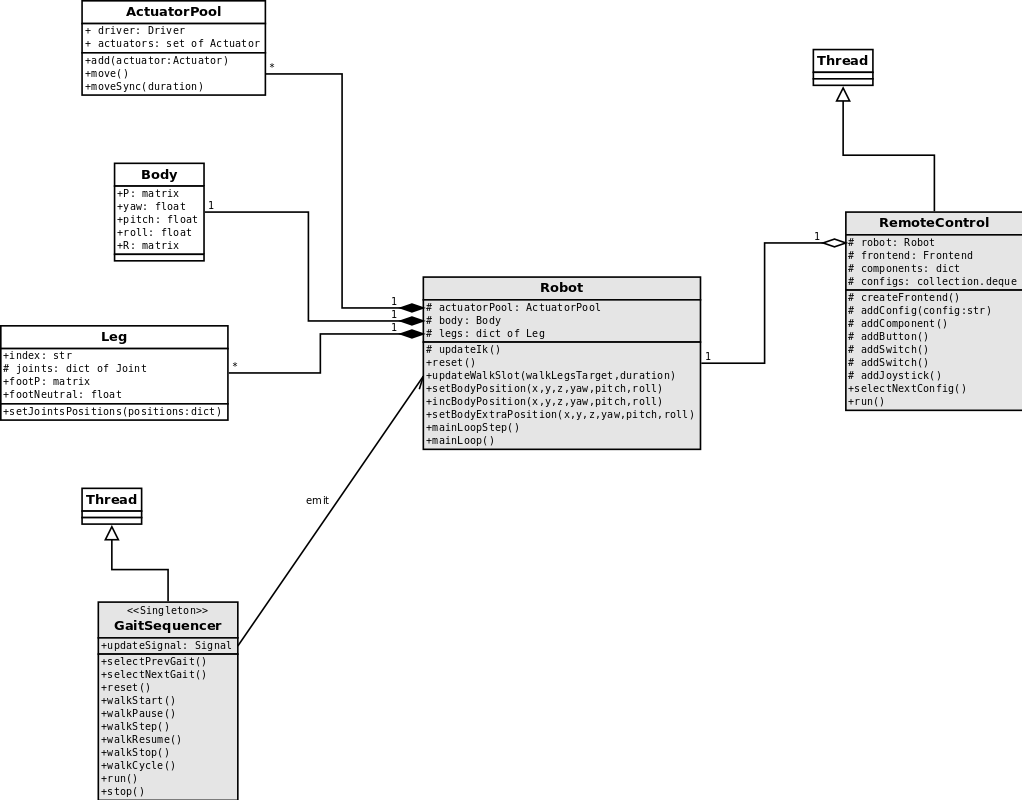
The main parts of the framework are:
- the robot itself, containing the IK engine (static implementation);
- the gait sequencer, making the robot walk (dynamic implementation);
- one or more remote controllers, allowing the control of the robot.

Each of these parts runs as separate thread. For now, the robot does nothing in its main loop, ans so, can be used for further devs (auto-leveling...).
TODO: move to a dedicated page
Geometry definition
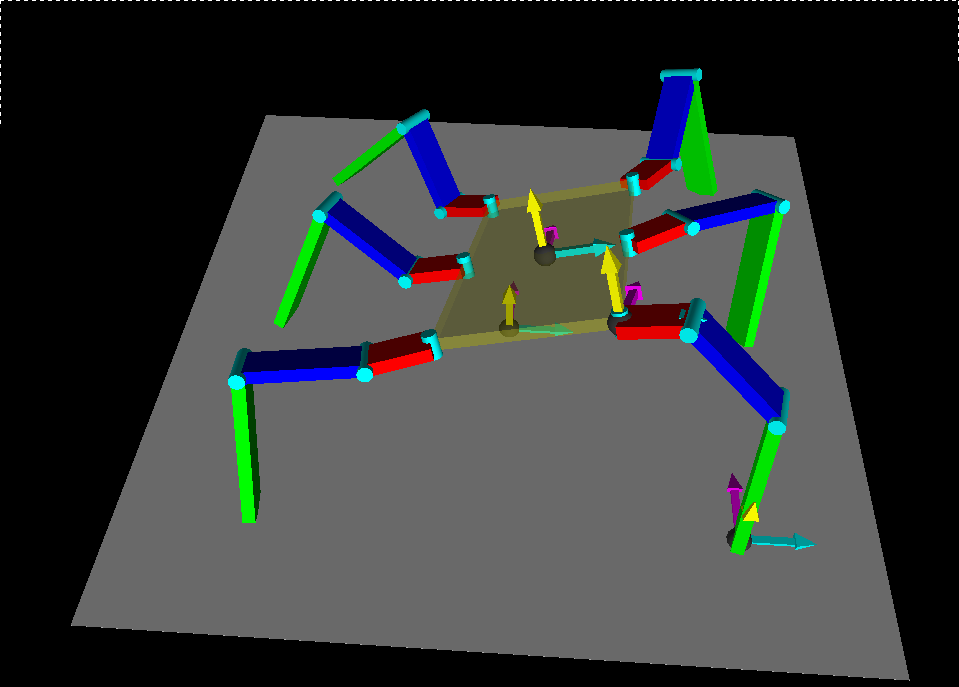
There are several coordinates systems involved when computing maths in order to make a robot walk; it is important to understand how they are defined. All these systems are cartesian.
In the image below, X axis is in cyan, Y axis is in magenta, and Z axis is in yellow:

Robot coordinates system
This coordinates system is attached to the robot itself:
- the origin is at the center of the robot, in the ground plane
- X and Y axes are in the ground plane
- Y axis is the back-to-front axis of the robot
- Z axis points up
Body coordinates system
This coordinates system is attached to the body. It is defined from the robot coordinates system:
- the origin is at the center of the body
- X and Y axes define a plane parallel to the body
- Y axis is the back-to-front axis of the body
- Z define the top side of the body
This system is used to define the position of the body in the robot coordinates system, allowing it to move along the 6 DoF (3 translations, 3 rotations).
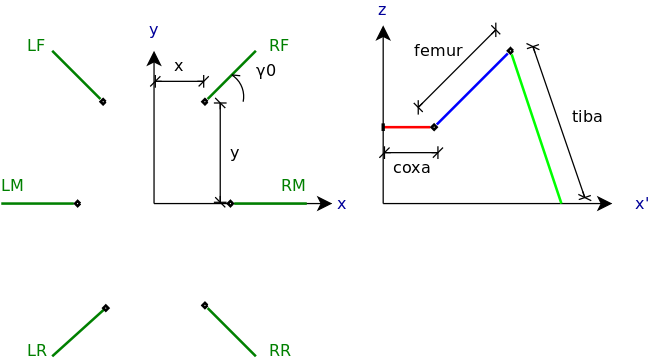
Legs coordinates systems
These coordinates systems are attached to the legs, so each leg has its own coordinates system. They are defined from the body coordinates system:
- the origin is at the coxa joint
- X and Y axes define a plane parallel to the body
- X axis is along the coxa of the leg
- Z points up
To summurize, from the body coordinate system, the legs coordinates systems are translated by (x, y) and rotated by gamma0 arround Z:

Todo: improve drawing
Feet coordinates systems
They are the last coordinates systems used in this framework, and they are used by the gaits, to make to robot walk.
They are defined from the robot coordinates system:
- the origins are at the center of the feet, in the ground plane
- X and Y axes are in the ground plane
- Y axis is the back-to-front axis of the robot
- Z axis points up
To summarize, from the robot coordinate system, the gaits coordinates systems are translated by (x, y).
Inverse Kinematic
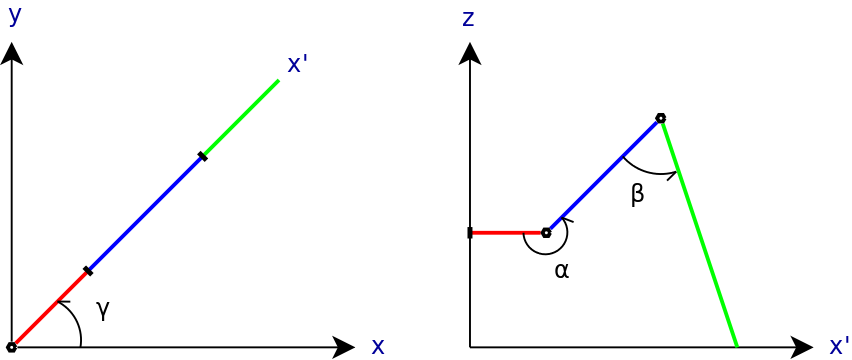
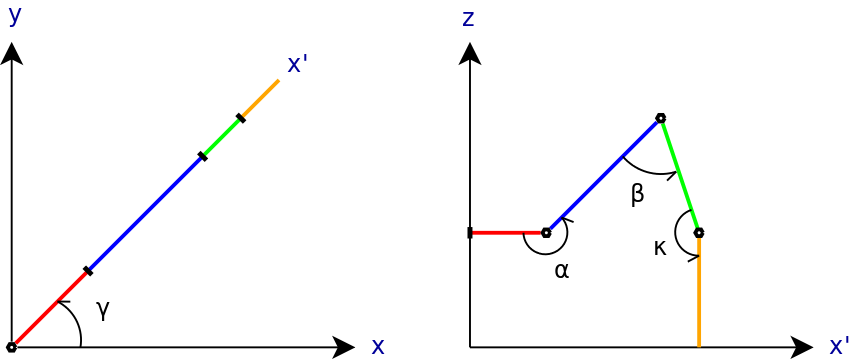
The Inverse kinematic is the the kinematic equations of a robot to determine the joints parameters that provide a desired position of leg (foot).
Here are the angles involved:
3 DoF leg
- gamma: angle of the leg in the the body X/Y plane (angle between body X axis and leg X axis)
- alpha: angle of the femur in the leg X/Z plane (angle between coxa and femur)
- beta: angle of the tibia in the leg X/Z plan (angle between femur and tibia)

4 DoF leg
- tars: angle of the tars in the leg X/Z plan (angle between tibia and tars)

Robot
The robot is responsible for all static computation, ie implements the inverse Kinematic. It also manages the body position, which can move along the 3 axes, and rotate around 3 axes.
As shown in the tutorials, to implement a custom robot, you need to write a new class which inherits from Robot, and overload several methods:
_createBody(self)_createLegs(self)_createActuatorPool(self)
This is where you choose how many legs your robot has, and how many Degrees of Freedom (DoF) each leg has.
The Robot object has some usefull methods you will have to use in order to make your robot do smart things:
setBodyPosition(self, x=None, y=None, z=None, yaw=None, pitch=None, roll=None)
This method can only be called when the robot is in idle state.
It translates/rotates the body, and the new position is kept.
incBodyPosition(self, dx=0., dy=0., dz=0., dyaw=0., dpitch=0., droll=0.)
This methods can be called in any robot state.
Like the previous method, you can adjust the body position, by little steps.
setBodyExtraPosition(self, x=None, y=None, z=None, yaw=None, pitch=None, roll=None)
This method can only be called when the robot is in idle state.
Like the first method, you can translate/rotate the body. The resulting position of the body is the combination of the bodyPosition and the bodyExtraPosition.
The setBodyPosition() is mainly used at startup, to set a pre-defined position of the body. The setBodyExtraPosition(), however, can be usefull to move the body around its default position, without loosing it.
incFeetNeutral(self, dneutral)
This method can only be called when the robot is in idle state.
It allows you to extend/reduce the position of the feet. If the robot is in idle or pause sequence, it will do a static walk, in order to put all feet to there new neutral positions.
Actuators, Pools and Drivers
Actuators are the objects which really move the Joints.
Pools are used to group Actuators, mainly to moved them in a synchronized way. It is possible to have the same Actuator in several Pools, but, of course, you won't be able to drive both Pools at the same time.
A Pool uses a Driver to really make the Actuators move.
Servos calibration
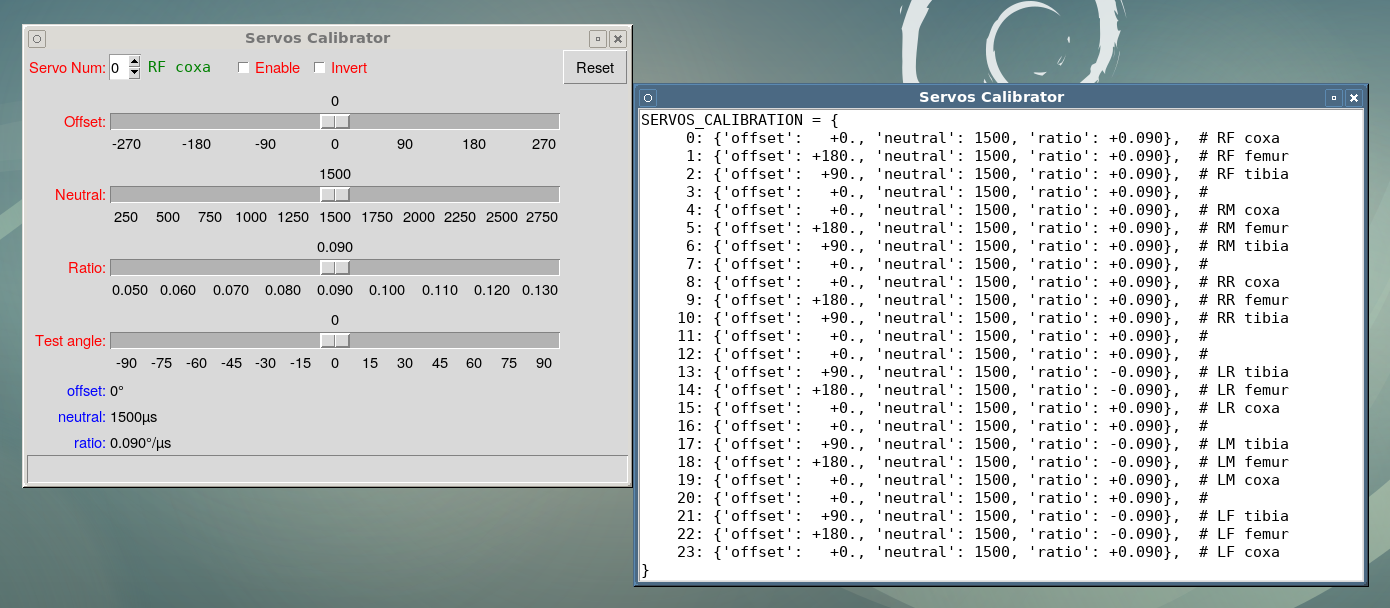
py4bot-gui-servocal.py script can be used to fine tune servos, and generate the SERVOS_CALIBRATION dict.

Gaits and GaitSequencer
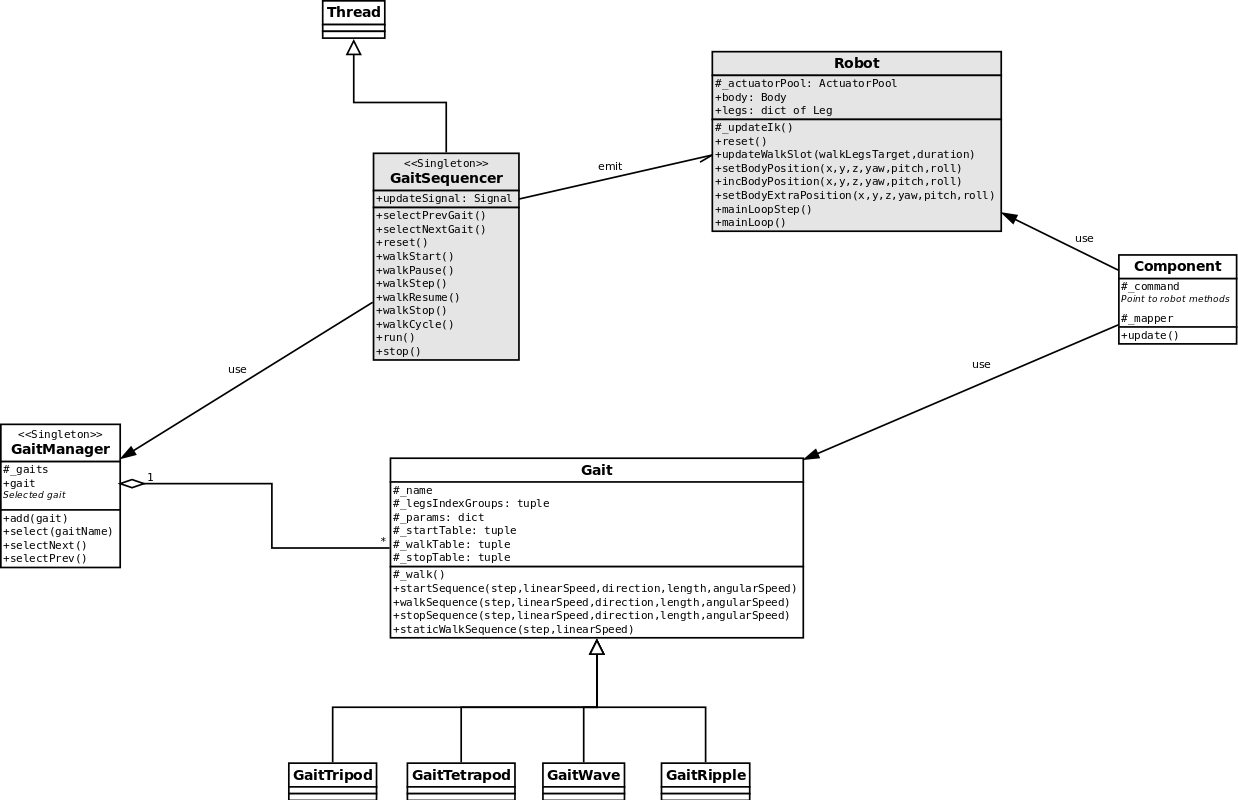
The Gaits and GaitSequencer implement the dynamic part of the movements: they compute the successive feet positions in order to make the robot walk, and send them to the IK engine.

In the current implementation, a Gait is mainly a set of tables describing how the robot walk. These tables contains the steps the feet will have to follow.
The GaitSequencer is an important part of the framework, and maybe the most complicated one. I have to admit that it is far from perfect, and will need additional work.
TODO: move high level description to #architecture part.
Remote controls
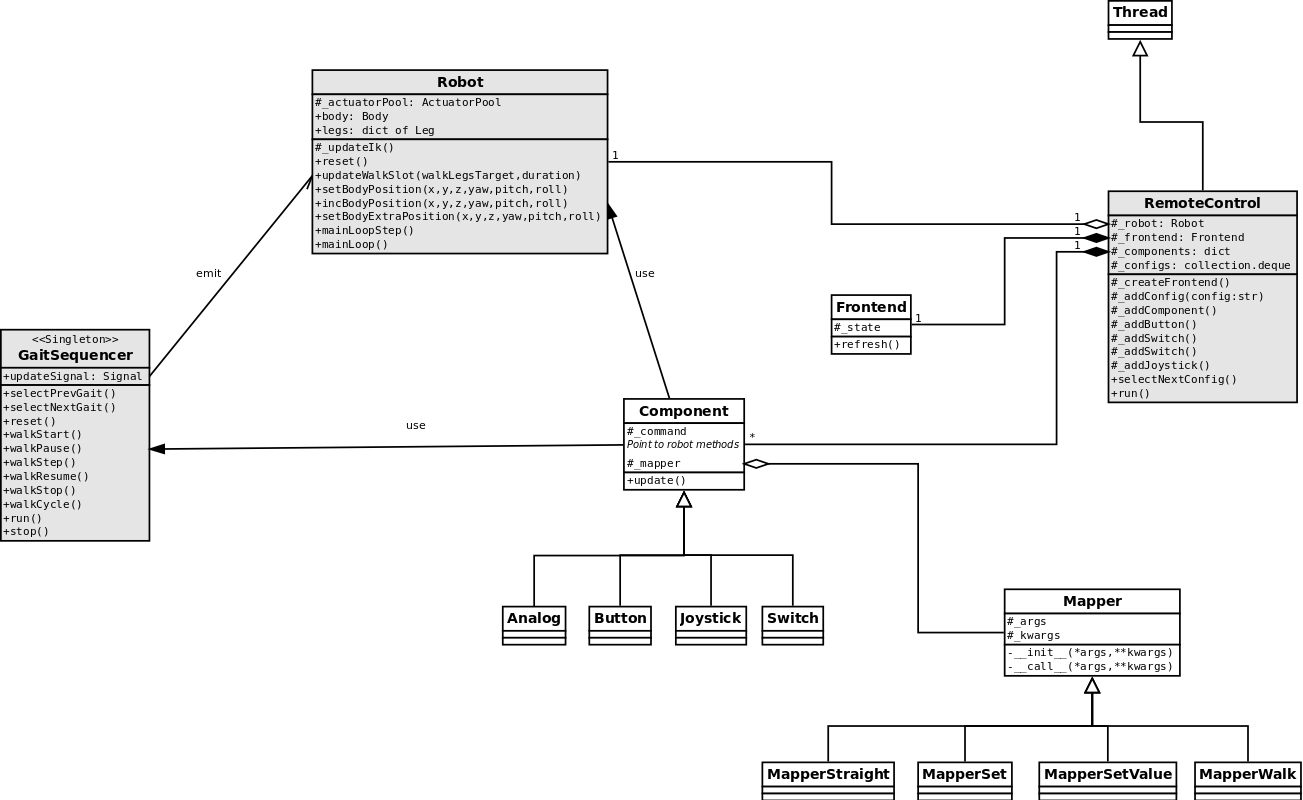
The RemoteControl translates user orders to Robot/GaitSequencer methods calls.

As you can see on the UML diagram, a RemoteControl object uses Components; a Component can be a Button, a Switch an Axis, or a Joystick.
RemoteControl has the following virtual methods which must be override in a custom remote control class:
_createFrontend(self)
This method must return an input frontend.
_buildComponents(self)
Here, we create the components of the remote control.
A number of helper methods are used to setup the remote control:
_addConfig(self, config)- config: str ot list/tuple of str, containing the name of the config(s).
_addComponent(self, cls, **kwargs)- cls is the
Componentclass to instantiate. For now,Button,Switch,AxisorJoystick; - configs (optional) contains the config(s) where this
Componentwill be valid. Several configs can be given has list/tuple. By default, theComponentwill be valid in all configs; - command is a Python callable (function, method...) which can be reached from our class. You may remember that we gave the robot instance when instantiating the gamepad object; this way, we can refer to all robot methods through
self.robot. We can directly reachGaitSequenceras it is a singleton; - key/keys is the input
Frontendkey to associate with theComponent. There are 2 types of keys: digital_ and analog_; - modifier (optional) is a key (must be a digital_ type) which must be pressed together with the main key to trigger the command;
- threshold is the minimum value
Axis/Joystickmust reach to trigger; - curve response
Curveof the input - forAxis/Joystickonly; - mapper is a
Mappers, another Python callable which translatesRemoteControlComponentoutput to command input.
- cls is the
selectPreviousConfig(self)
selectNextConfig(self)
robot
The robot object is used to reach the robot methods from the components.
Component
Py4bot implements different Components to build a custom remote control. All components
Button
Button is a simple push button, with several triggers, in order to control its behavior:
- click
- double-click
- press
- release
- hold
- double-hold
Default trigger is click (you must press and release the button quickly).
Axis
Axis handles a single analog axis.
Joystick
Joystick combines several analog axes.
Configurations and modifiers
There are many commands to control the robot, and not enough physical buttons/axis on a gamepad. So, a solution is to multiplex these buttons/axis. There are 2 ways to do that: configurations and modifiers. Configurations allows to change the entire mapping; modifiers only changes a button meaning.
To create configurations, use the _addConfig() method. This method take a string as argument, the name of the configuration. It is then possible to restrict a Component to a specific configuration by giving its name in the configs param (it is possible to give a list/tuple for several configurations). Without it, the Component is active in all configurations.
A modifier works as Shift, Ctrl or Alt keys on a keyboard, i.e. the Component will only react if the modifier is press. A modifier can only be a key starting with digital_.
Mappers
Mappers are simple objects helping to adapt params from RemoteControl Components output to Robot/GaitSequencer/other methods input.
MapperStraight
MapperSet
MapperSetMultiply
MapperSetValue
MapperToggle
MapperWalk
Custom Mappers can be defined.
Frontend
Frontends are responsible of generating states. This is where specific controllers implementation lives.
There are some usefull Frontends defined in Py4bot, mainly USB-based, using event interface. See tutorial 4 to see how to add a new frontend.
Attachments (8)
-
IK3DoF.png
(13.3 KB
) - added by 10 years ago.
IK 3DoF
-
IK4DoF.png
(14.6 KB
) - added by 10 years ago.
IK 3Do4
-
body_legs.png
(17.0 KB
) - added by 10 years ago.
Body/legs geometry
-
coordinates_systems.png
(22.6 KB
) - added by 10 years ago.
Coordinates systems
-
design_simple.png
(76.7 KB
) - added by 10 years ago.
Design - main parts
- design_remote-control.png (89.0 KB ) - added by 10 years ago.
- design_gait.png (87.3 KB ) - added by 10 years ago.
-
py4bot-gui-servocal.png
(233.0 KB
) - added by 9 years ago.
Screenshot of servos calibrator tool
Download all attachments as: .zip